Hi friends! I’m back again today with a follow up post from last time. A couple of weeks ago I wrote about how I used Copilot to help me with a customer visit follow up. I really enjoyed writing that post as I find it better for me to explain things if I can make it personal.
Microsoft 365 Copilot adoption is accelerating. In our most recent earnings call, the Microsoft CEO Satya Nadella mentioned that the Microsoft First Party Copilot offerings have 150 million monthly active users. That’s amazing! After recently spending time with customers deploying Copilot in real production environments, there are often repeated questions concerning how to govern our solutions.
Today, I want to continue that thought my discussing some of my top-of-mind thoughts when it comes to how IT Administrators may want to consider governing M365 Copilot Chat & Web Search so they can empower their users to use Copilot in a similar way as I described. This post focuses on a few key admin questions I’ve heard recently and where IT Admins can configure them. This isn’t meant to be an exhaustive list of all the things you can control and govern. This is just the main things that are top of mind to me. Let’s get started.
Copilot Chat Governance Overview
Copilot Chat presents unique governance considerations because it blends AI-powered conversational reasoning, Enterprise data grounding from Microsoft Graph, Optional Web Grounding, and the ability to recall, summarize, or transform Enterprise data. Microsoft provides a layered control model across Microsoft 365 Admin Center, Cloud Policy Service, Purview, and Entra. Here are a couple key documents to get us started:
- Manage Microsoft 365 Copilot Chat
- Microsoft 365 Copilot App Admin Settings
Governing Web Search in Copilot & Copilot Chat
Let’s start with Web Search. Web Search is one of the most sensitive and misunderstood components. With Web Search enabled, Copilot may fetch Bing web results to improve an answer – BUT (big BUT) – it uses careful filtered, pivacy-preserving queries. The authoritative Microsoft guidance is below:
- Data, Privacy, and Security for Web Search in Microsoft 365 Copilot & Copilot Chat
Here are some Key Points to make sure you understand how it works:
- Admins control web search globally using Cloud Policy -> Allow web search in Copilot
- Policy applies to both Copilot Chat and Copilot (Work/Web model)
- Web Search grounding never sends:
- User Identity
- Full Prompts (unless extremely short)
- Files, Emails, Documents
- Entire PDFs or Web Pages from Edge actions
- Users may disable web search indivdiually if the IT Admin allows it
- Web Search toggle is not available in Copilot Chat – only the main Copilot experience
IT Admins can configure this in the Cloud Policy Service found in the Microsoft 365 Apps Admin Center. To prepare for this, let’s create an Entra group for users where we want to disable Web Search. Specifically, you’ll navigate to Entra Admin Center -> Entra ID -> Groups -> New Group
I’ll create a Group called Entra-Security-Copilot-WebSearch-Disable and add our user Vance DeLeon
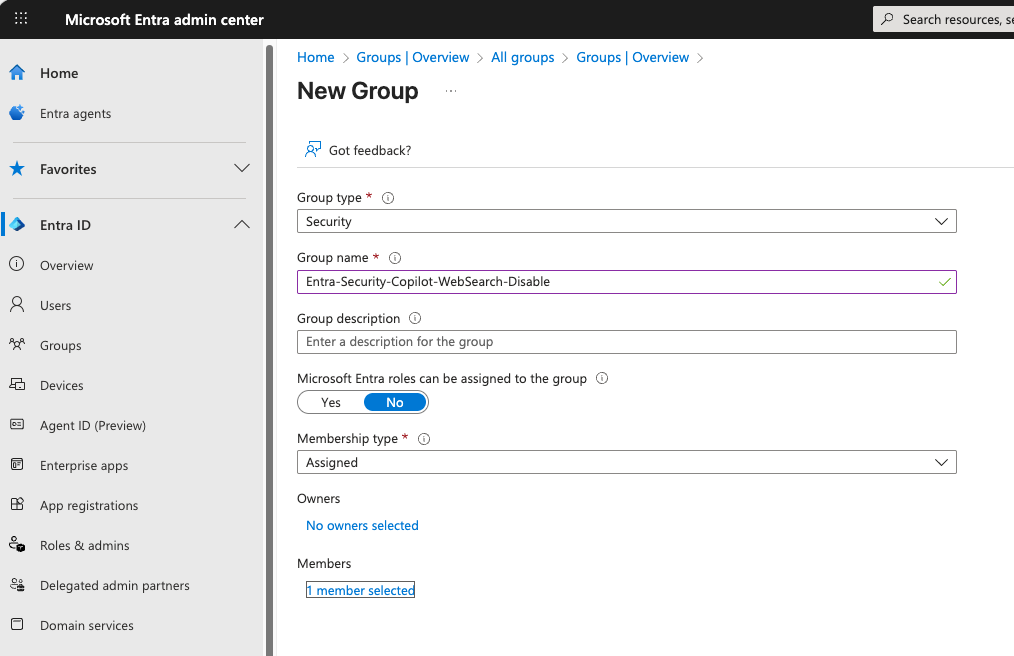
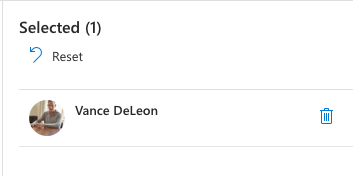
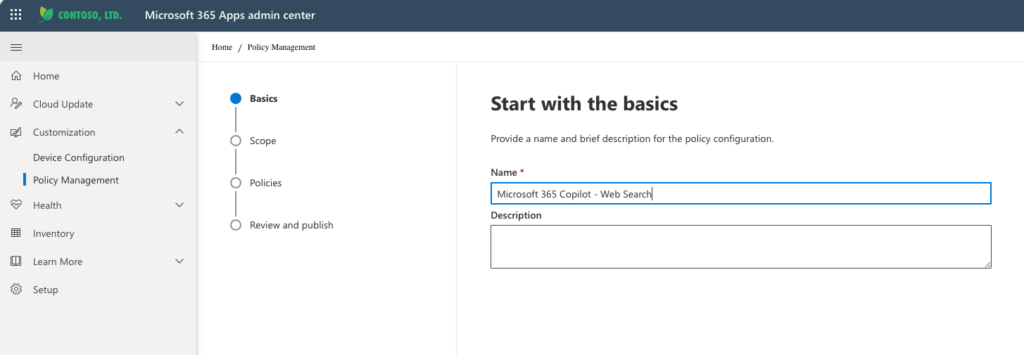
Now, let’s create the Policy to disable Web Search. Specifically, you’ll navigate like this: Microsoft 365 Apps Admin -> Customization -> Policy Management -> Create Policy.
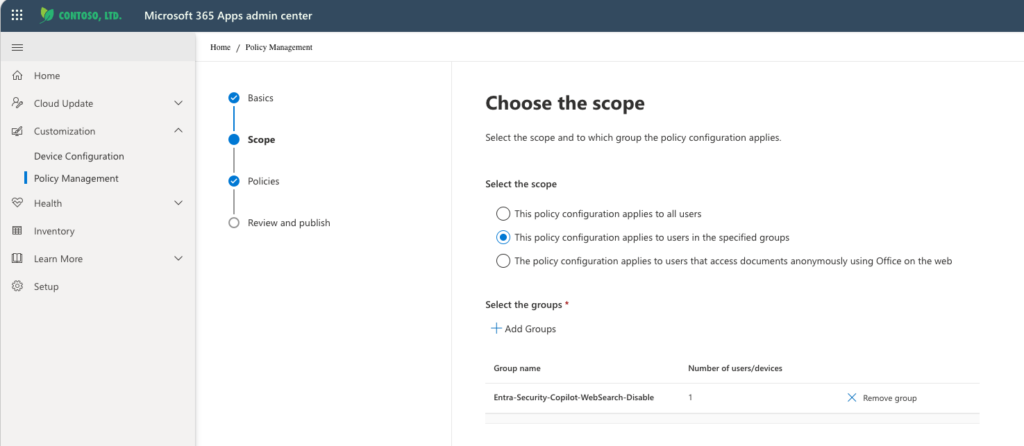
Now we need to Choose the Scope. We’ll use this Entra Group we created above. Click Next.
By default there are over 2,000 policies you can configure!

Let’s filter this down to Web Search

That’s better. Click on the policy. By Default this is Not Configured so Web Search is enabled.
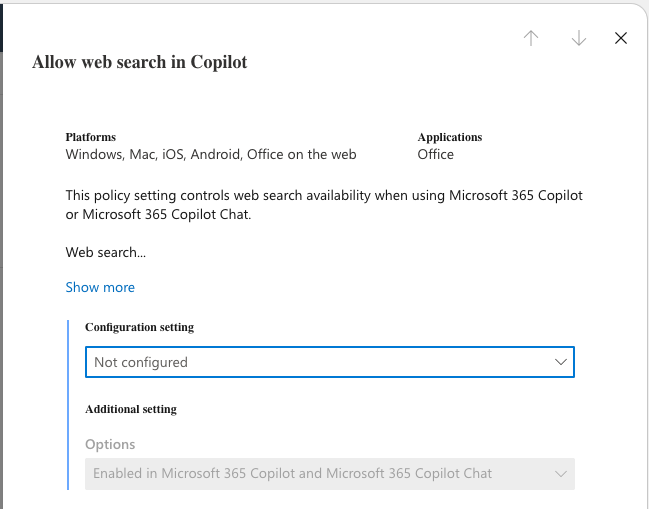
But, if you change the Configuration Setting to Enabled, this gives you three choices
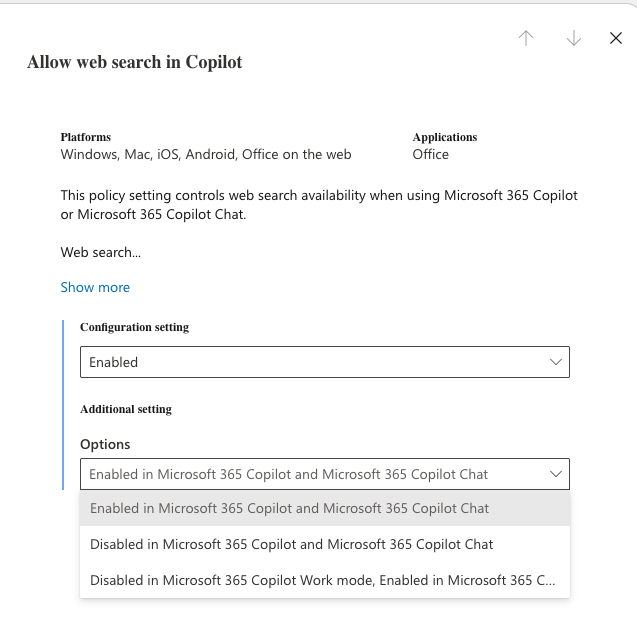
We’ll choose the last option and finish creating the policy that disables this for Work but allows it in Web Mode.
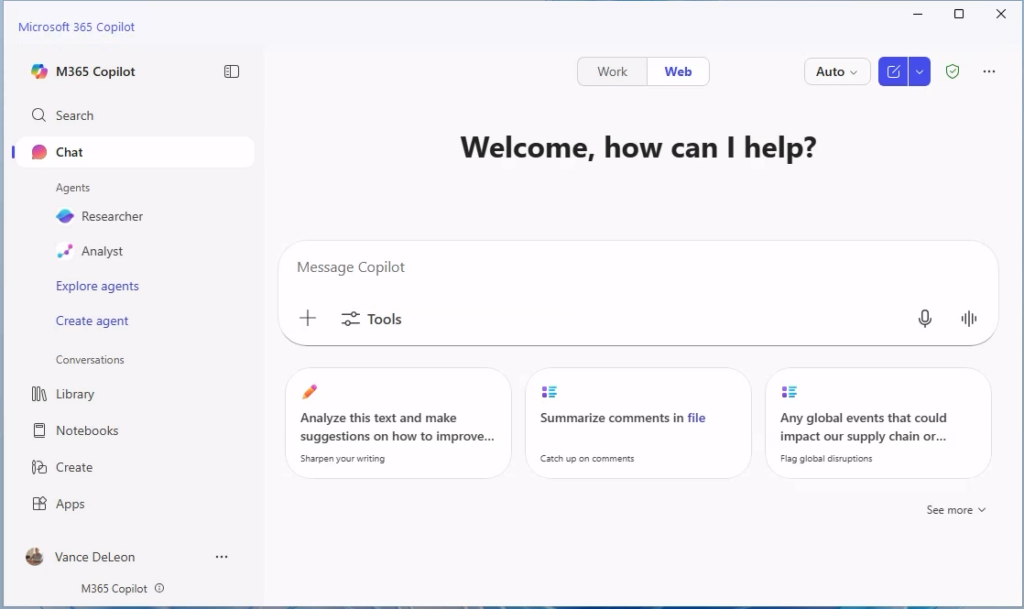
Notice that if Vance goes to Copilot Chat in Work Mode, he gets a notice that Web search is off
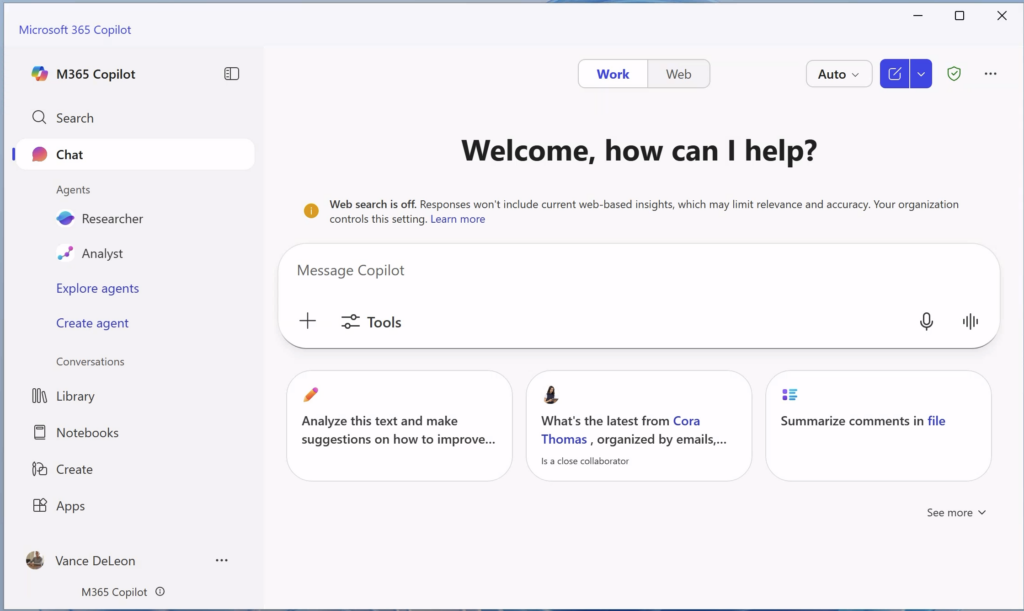
And if he chooses the (…) he cannot turn is back on. It’s grayed out.
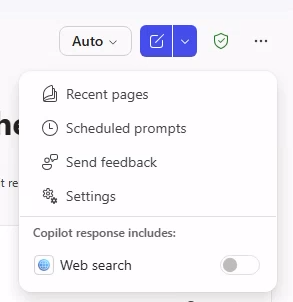
But, if Vance chooses Web Mode – there are no restrictions. That’s by design. The Policy works!
To close out this section, I want to copy verbatim from the source above:
- The user’s prompts and Copilot’s responses are stored within Microsoft 365 and never leave the service boundary for both Microsoft 365 Copilot and Microsoft 365 Copilot Chat without customer direction. Enterprise data protection, the Data Protection Addendum (DPA), and the Product Terms apply to prompts and responses, with Microsoft acting as a data processor.
Pinning & Availability Controls for Copilot Chat
Pinning, visibility, and availability for Copilot Chat different depending on licensing and IT Admin Settings. The Most relevant Microsoft Documents for this are found below:
- Manage Pinning for Copilot Chat
- Copilot App Admin Settings (Pinning behaviors by license)
Some key governance considerations of note:
- Copilot Chat is pinned by default for many licensed users
- IT Admins can control visibility in the Copilot app navigation
Let’s look at some of those. Start by navigating to Microsoft 365 Admin Center -> Copilot -> Settings and let’s look at the Pin Microsoft 365 Copilot Chat settings

Notice that it’s set to the default/recommended value of Pin.
You can change this globally here, or, using what we learned above we could scope this policy in Microsoft 365 Apps Admin. You can navigate and create a policy just like above, and you’d want to look for the “Pin Microsoft 365 Copilot Chat” policy. Your options are Not Configured, Enabled, and Disabled.

Network Requirements
Unlike many of my previous posts concerning specific IP and URL control for things like Teams Phone, or Exchange Online, Microsoft 365 Copilot Chat is different. Microsoft does not recommend and cannot support attempts to manage M365 Copilot Chat and related settings through network-level restricitons like selective URL, IPs or network-protocol filtering. It is deeply integrated with applications, so, you will want to follow the full-list of Microsoft 365 required endpoints which includes M365 Copilot and Copilot Chat. You can refer to our well known and updated Microsoft 365 URLs and IP address ranges guide.
Pinning Copilot in Microsoft Teams
And to close us out today, let’s pull together getting Copilot into the flow of work. I live in Teams. I sometimes forget to even open Outlook or other tools. Teams is *the place* I want to make sure I have Copilot pinned. We can ensure Copilot is pinned on the left-rail of our Teams app. We’ll do this with a Teams App Setup Policy. The Microsoft Guide for App Setup Policies is below:
- Manage App Setup Policies in Teams
But, let’s make it real. Navigate to Teams Admin Center -> Teams Apps -> Setup Policies and let’s create a simple policy pinning Copilot to the top – maybe a clever name like “Pin Copilot On Top” 🙂
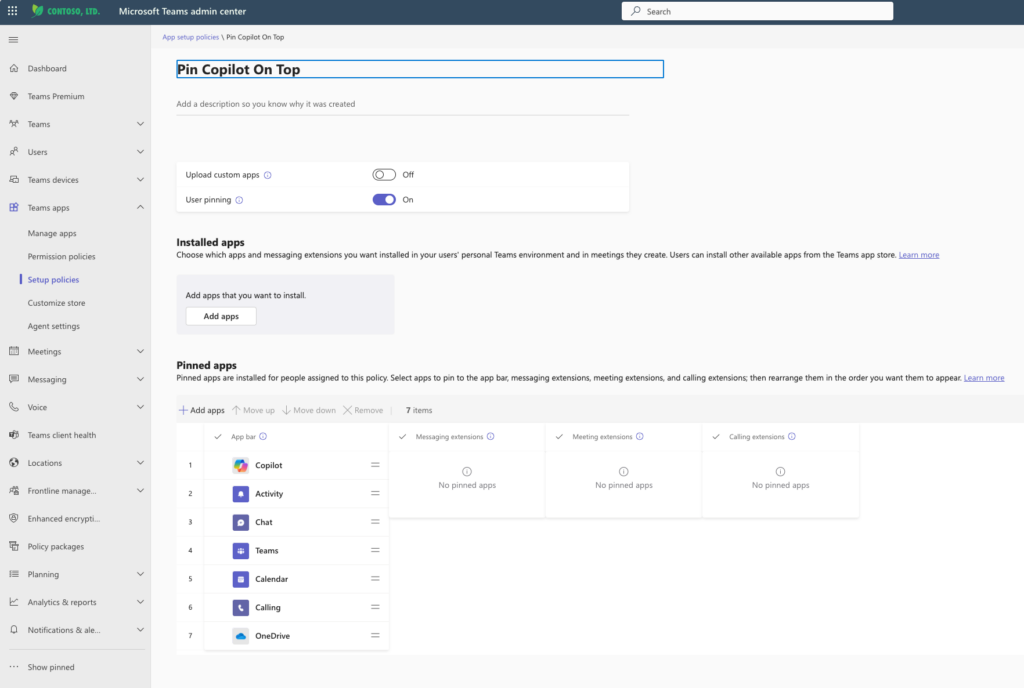
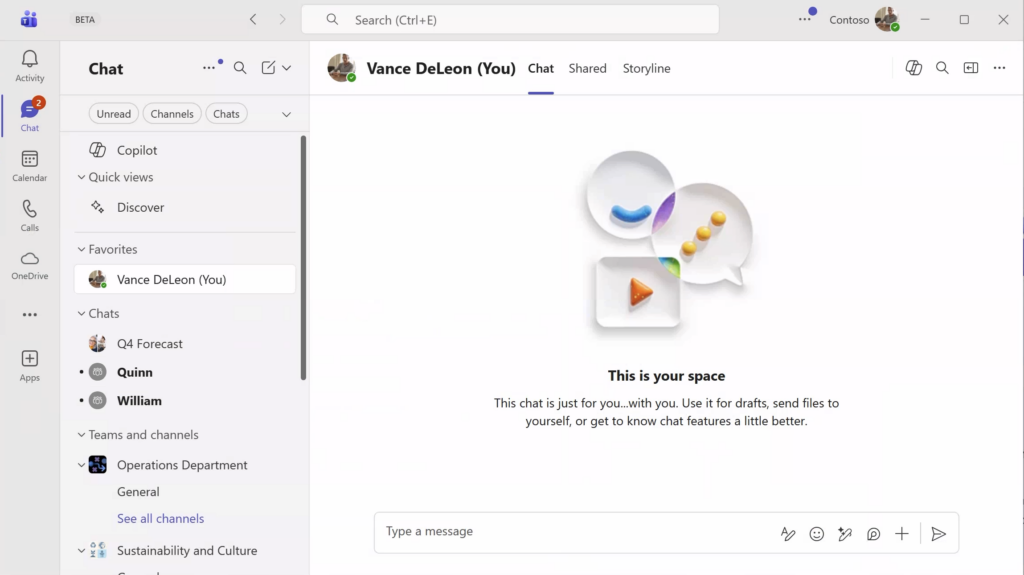
This is what our hero Vance’s Teams look like now.
Now, let’s apply our App Setup policy. Still at the Setup Policies, select the one you just created – Pin Copilot on Top -> Manage Users. Select Vance.
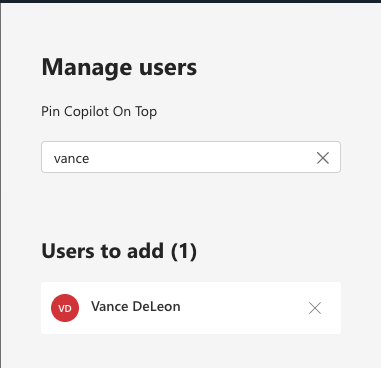
Apply that. Let’s wait a few Microsoft Minutes and look back at Teams.
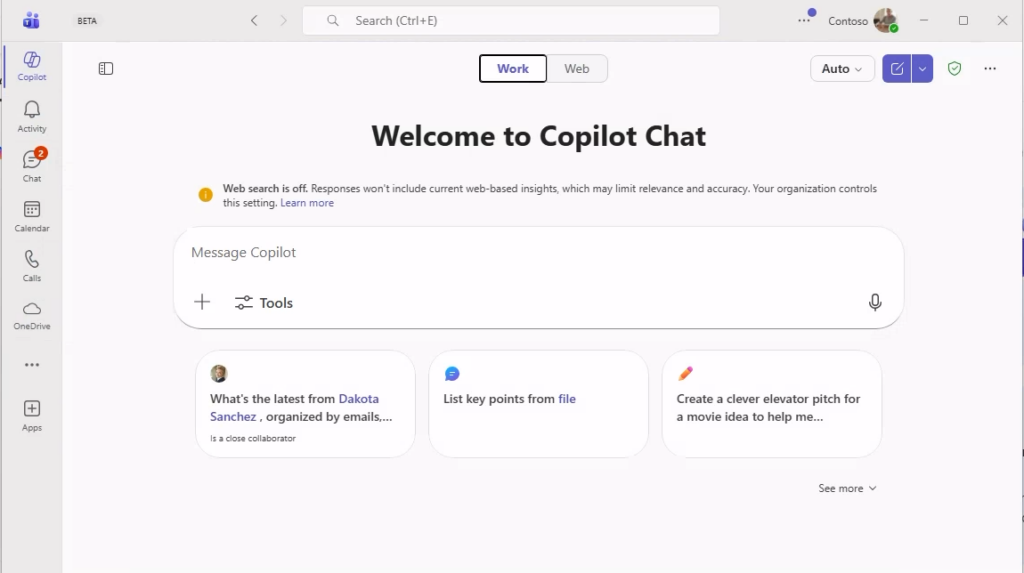
Yes. Just like we wanted. Copilot is now pinned at the top of the left rail. And you can see the expected experience we configured above by disabling Web Search carries over into Copilot Chat even in Teams.
Wrap Up
Thanks for sticking it out. Like I said, this wasn’t meant to be an exhaustive post on all of the things an IT Admin can do to govern Copilot Chat. These are the topics that have come up the most often in various conversations I’ve had internally and with customers. As customers adopt M365 Copilot more deeply – especially Copilot Chat – governance becomes the differentiator between just exploring the product and enterprise-wide rollout. I hope this is helpful to those of you reading this as you journey to rollout!
1 thought on “My Sandbox 365: Copilot Chat & Web Search Admin Thoughts”
Comments are closed.