Hello friends! Welcome back! In a recent post, I walked through building an agent that takes an Azure DevOps CSV export, processes it, and produces charts.
That worked. I liked it. It solved a real problem I was chasing.
But it also left me with a new problem I don’t love: the math wasn’t deterministic.
It was mostly right. But “mostly” isn’t good enough when you’re summarizing real operational data. Small rounding errors are normal; however, fluxuations in reporting based on “conversational math” could lead to bad operational decisions. The mathematician in me wanted to do better.
So I put on my learn-it-all hat and took the next step: I rebuilt the entire pipeline as a scheduled Power Automate Flow, using deterministic math and only leveraging AI where it actually makes sense.
This post is how I did that – moving from Agent to Automation – and what I learned along the way.
As usual, this is a long detailed post with lots of wordy-words and screen shots. Go get yourself your favorite beverage. I’ll be right here.
Back? Great. Let’s dive in.
Why I considered moving away from the agent
The agent I wrote about previously did exactly what I designed it to do:
- Parse a CSV from Azure DevOps
- Extract key fields (UAT ID, Region, Role, Summary)
- Generate a chart showing distribution
But there’s an inherent trade-off with LLM-driven flows:
- They are great at interpretation.
- They are not great at math you need to trust 100% of the time.
What I was seeing in practice:
- Slight inconsistencies in totals
- Occasional rounding or categorization drift
- Non-deterministic outputs (same input ≠ always same result)
That’s fine for insight exploration.
It’s not fine for automated reporting. And it’s definitely not fine for operational decision making.
So I changed the model: Flow does the math. AI only parses.
Instead of:
- ADO Query -> Export CSV -> Agent -> Charts
I moved to:
- Flow -> Automation Trigger -> ADO Query -> AI Parsing -> Deterministic Logic -> Output
The Power Automate Flow (high level)
This is a very large flow. I’m not going to pretend otherwise. But it’s very intentional. Let me break it down in easy to digest byte-sized chunks (see what I did there?):
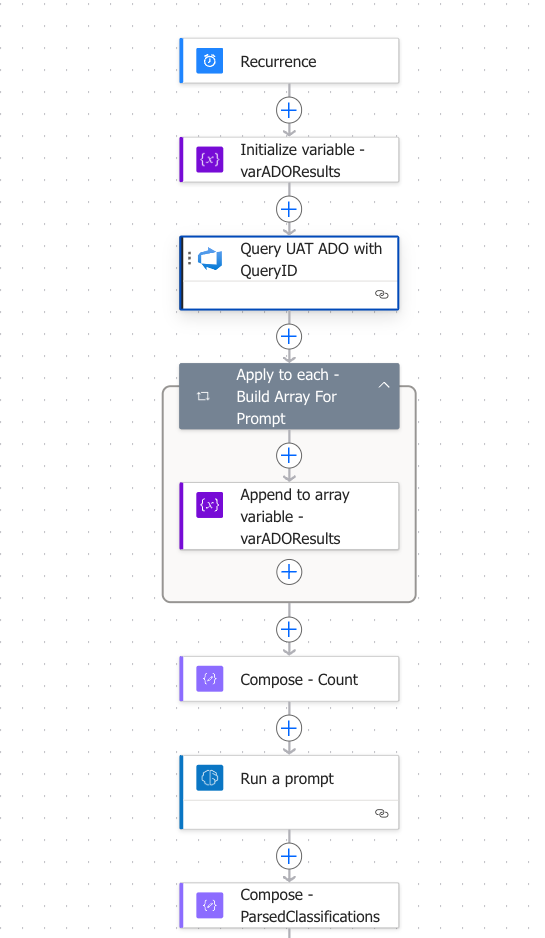
- Scheduled trigger
- I start with a simple timer: run weekly, on Friday, at 9:00 AM
- Pull data directly from Azure DevOps
- No more CSV download step.
- Flow calls the ADO query directly and retrieves the dataset.
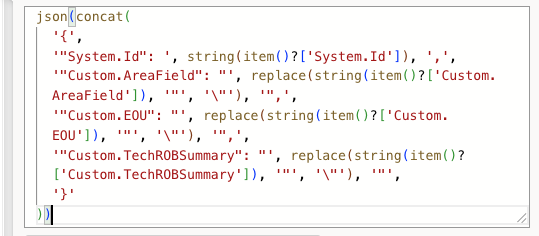
- From each record, I extract:
- UAT ID
- Region
- EOU (future use)
- TechROBSummary (used to derive title context just like before)
- Everything gets normalized into an array.
- Lightweight AI parsing (this is where AI does belong in this solution)
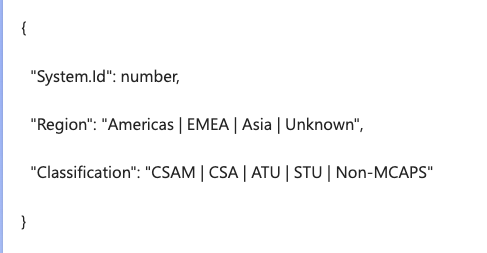
- I do use an AI Builder prompt — but only as a parser.
- The prompt extracts structured fields like:
- Job Title Type
- UAT ID
- Region
- EOU (again, future use)
- That’s it.
- No counting. No aggregation. No decisions.
- AI = structure extraction only
- Deterministic processing loop
- This is the core of the system.
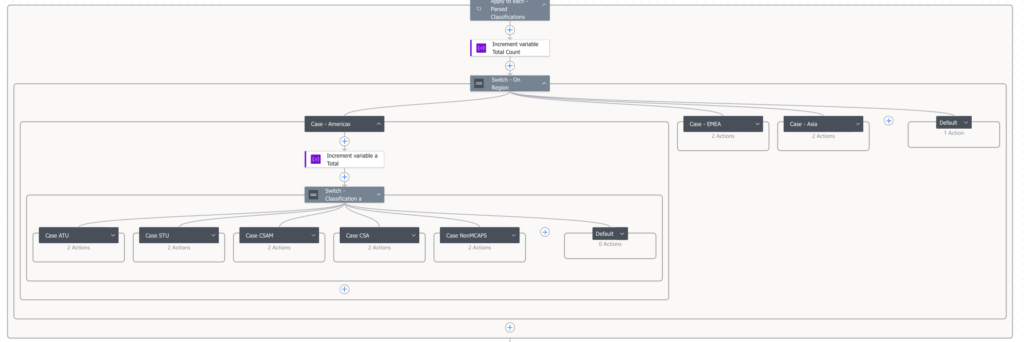
- For every UAT ID extracted, item:
- Increment total counts
- Route through a region switch:
- Americas
- EMEA
- Asia
- Default (for bad/missing data)
- Then inside each region, process by a job title switch for role classification:
- ATU
- STU
- CSA
- CSAM
- Non-MCAPS (everything else)
- It’s important to note a couple of important realities I had to handle: regions change over time (fiscal year changes, manual entries), some records might be missing detail or have invalid data, roles don’t always map cleanly. So I built explicit defaults everywhere to ensure everything gets counted.
- Deterministic math (no LLM involvement)
- Once counts are complete:
- Convert integers → floats
- Perform percentage calculations
- Format to 1 decimal place. Yes, this introduces small rounding artifacts. That’s fine. It’s honest, consistent, and repeatable. I also call it out explicitly in the output. This is a tradeoff I’ll take every time over inconsistent math.
- Once counts are complete:
- Multi-format output
- From the same data, I generate:
- Markdown tables (base format)
- HTML (for email)
- JSON (for Teams adaptive cards)
- Then I push:
- Adaptive card to Teams (structured view)
- Formatted email (clean executive-friendly view)
- From the same data, I generate:
Let’s make that more real with some screen shots. Here’s what the “top part” of the Flow looks like covering steps 1, 2 and 3:
The step inside the “apply to each” takes the output from ADO and puts it into a structured array for ADO processing:
The Run a Prompt action takes that array, runs it through some of the Agent-type logic from last post, and gives me a structured output:
And that is parsed into a super stripped down array for deterministic processing. This is a very large, multi-nested, multi-switched math algorithm I briefly described in Step 4 above. It looks like this eye chart (yes, I only expanded a little bit so you could see the multiple steps and counts):
From there, I do a lot of deterministic math counts, conversations, and decimal point rounding. This leads us to the final output described in Step 6 above which looks something like this:
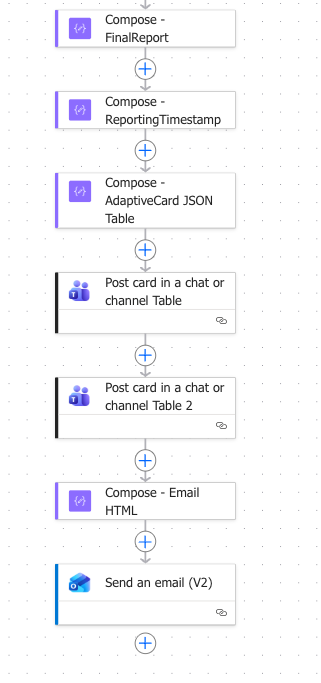
So, DW, what does output look like?
Well, charts of course. Just like with the Agent solution, we end up with:
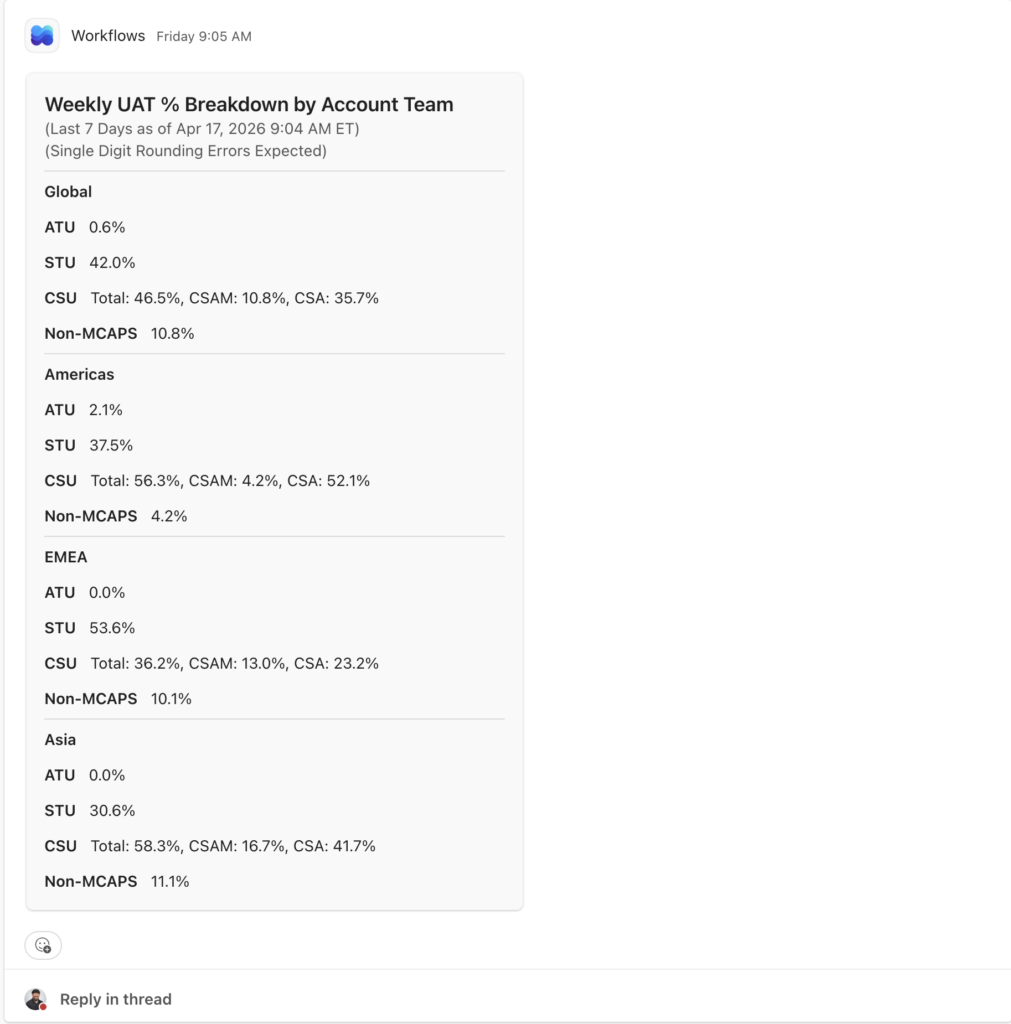
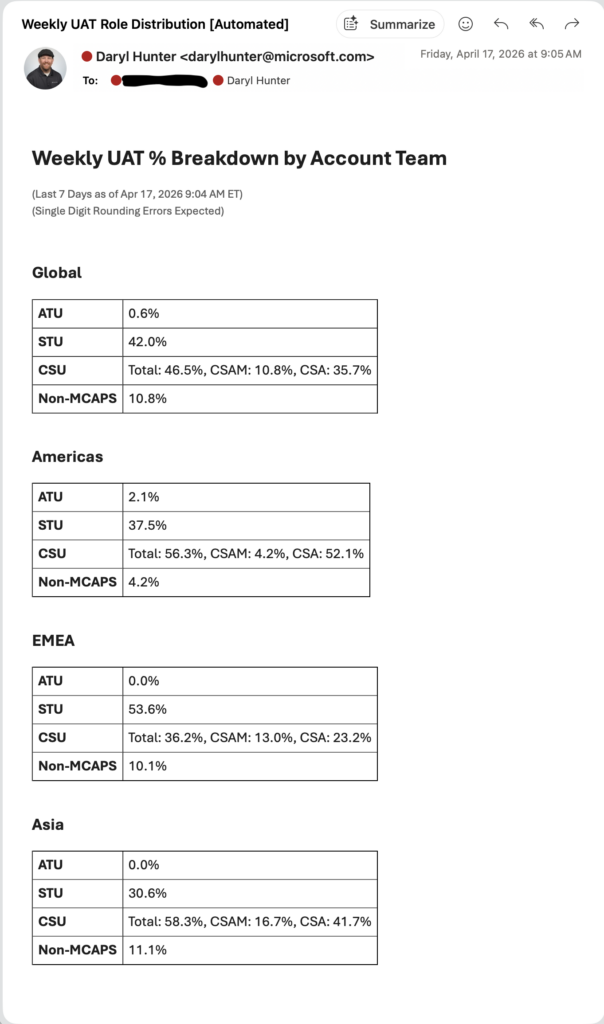
- Global distribution
- Regional breakdowns (Americas, EMEA, Asia)
- Role segmentation within each
Same data, different render formats depending on the channel.
- Teams Adaptive Card
- Outlook Email
Why I like this better
This design is a useful iteration of what I already did with Agent Builder and wrote about last time. And better yet (thanks in advance for forgiving my AI-formated bullets below) this iterative solution gives me:
- ✅ Deterministic math
- Same input → same output. Every time.
- ✅ Full transparency
- Every count is traceable through the flow logic.
- ✅ Resilience to messy data
- Defaults catch everything that would otherwise fall through.
- ✅ Scalable automation
- No manual CSV steps. Fully scheduled.
When to use Flow vs Copilot Studio
What I Learned Along The Way
This was a key learning for me.
- Use Agents when:
- You need conversational interaction
- You’re synthesizing content
- Some variability is acceptable
- Use Flow when:
- You are counting things
- You need strict(er) math accuracy
- You want repeatable automation
In my case – I wanted math + aggregation + reporting + scheduled automation. Flow is the right tool. My work in Agent Builder was not wasted. It was good enough. But I wanted to push myself.
The biggest learning for me here wasn’t technical – it was architectural. I shouldn’t ask AI to do things it shouldn’t be doing. AI is excellent at parsing unstructured text. AI was not a fully reliable source of truth for strict(er) math calculation and aggregation.
When I separated those responsibilities – it was simpler (although a large Flow), it was more trustworthy, and the automation actually became production-ready. I’ve now “set it and forgot it” so I only have to revisit it every once in a while with a governance lens to ensure it still meets the goal.
Wrap Up
Thanks for sticking it out. I’ve really enjoyed this thought exercise and being able to reduce my mental load on this project and allow automation to push to me (and others) what is needed. Win!
So, DW, what’s next? Great question. I’m already thinking about:
- Bringing EOU into the breakdown
- Expanding trend analysis over time
- Monthly rollups instead of weekly snapshots
And yes, I am going to build this in a hybrid Flow + Copilot Studio model. I believe my production-ready and ongoing solution will be this Flow-only model. But, I’m this far already and I really am jazzed about what I’m learning. So, let’s just keep going and trying something new!
And that’s that. Be well friends!